
How to Install KEMO SAT 4K on Android Phones & Tablets
Easy Android Installation Guide for KEMO SAT 4K
Welcome to the official KEMO SAT 4K Android Phone & Tablet Guide. This tutorial explains how to install and configure KEMO SAT 4K on Android smartphones and tablets in just a few simple steps.
Whether you’re using a Samsung Galaxy, Google Pixel, OnePlus, Xiaomi, Oppo, Vivo, Motorola, or another Android device, this guide will help you get started quickly.
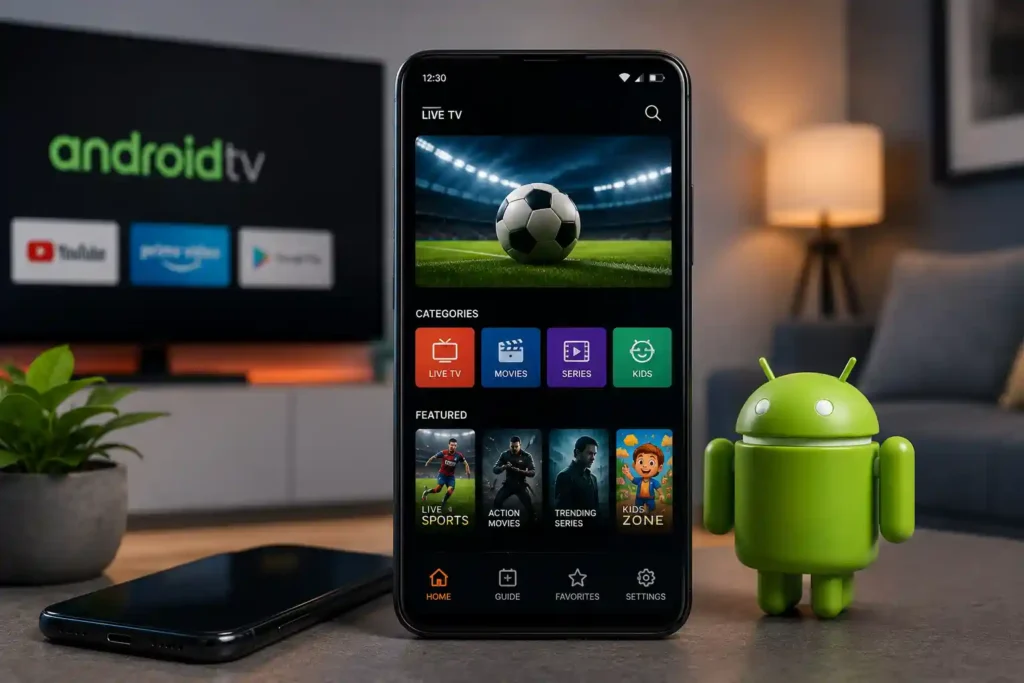
Table of Contents
Before You Begin
Before installing KEMO SAT 4K, make sure you have:
- An active KEMO SAT 4K subscription
- A stable internet connection
- Your account login details
- An Android phone or tablet running a supported Android version
- A compatible IPTV player installed on your device
Step 1 – Download an IPTV Player
KEMO SAT 4K works with compatible IPTV player applications that support Xtream Codes or M3U playlists.
Download and install your preferred IPTV player from the Google Play Store or another trusted source if it isn’t available through Google Play.
Once installed, open the application.
Step 2 – Select Your Login Method
Most IPTV players offer multiple login methods.
Choose the option provided with your subscription, such as:
- Xtream Codes API
- M3U Playlist URL
- Portal URL (if supported)
Always use the login details supplied with your subscription.
Step 3 – Enter Your Account Information
Carefully enter your:
- Username
- Password
- Server URL
Double-check for typing mistakes before continuing.
After entering your information, save the settings.
Step 4 – Wait for Content to Load
The IPTV player will verify your account and begin loading available content.
This may take a few moments depending on your internet connection.
Once synchronization is complete, your available categories will appear.
Step 5 – Start Watching
Your installation is now complete.
Browse through available categories and enjoy your streaming experience on your Android device.
Recommended Settings
For the best experience, we recommend:
- Using a reliable Wi-Fi connection
- Keeping your Android device updated
- Installing the latest version of your IPTV player
- Closing unused background applications
- Restarting the application if changes are made
These simple steps can improve stability and playback performance.
Common Android Installation Issues
Login Failed
Verify that your username, password, and server URL have been entered correctly.
Check for accidental spaces before or after your login details.
Buffering During Playback
Buffering is commonly related to internet speed or network stability.
Try:
- Switching to a faster Wi-Fi network
- Restarting your router
- Closing background downloads
- Restarting the IPTV player
App Won’t Open
Ensure you’re using the latest version of the IPTV player and that your Android device has enough free storage.
Restart your device and try again.
No Channels or Categories
Allow the application a few minutes to finish loading your content.
If the issue continues, refresh the playlist or log in again.
Android Tips
To enjoy the best possible streaming experience:
- Use a strong internet connection.
- Keep your Android system updated.
- Update your IPTV player regularly.
- Restart your device occasionally for optimal performance.
Frequently Asked Questions
Which Android devices are supported?
KEMO SAT 4K works with most Android smartphones and tablets running supported Android versions.
Can I use any IPTV player?
KEMO SAT 4K is compatible with IPTV players that support the login method provided with your subscription. Follow the recommendations provided by our support team or documentation.
How long does installation take?
Most users complete the installation process within a few minutes.
Is this guide suitable for beginners?
Yes. Every step has been written to make installation as simple as possible.
Where can I find more setup guides?
Visit our Guides page to view installation tutorials for Firestick, Smart TVs, Windows, macOS, iPhone & iPad, MAG Box, and other supported devices.
Need More Help?
If you experience any issues during installation, visit our troubleshooting guides or contact our support team for assistance.
Contact Us