How to Install KEMO SAT on Android Smart TV
Complete Android Smart TV Installation Guide for KEMO SAT 4K
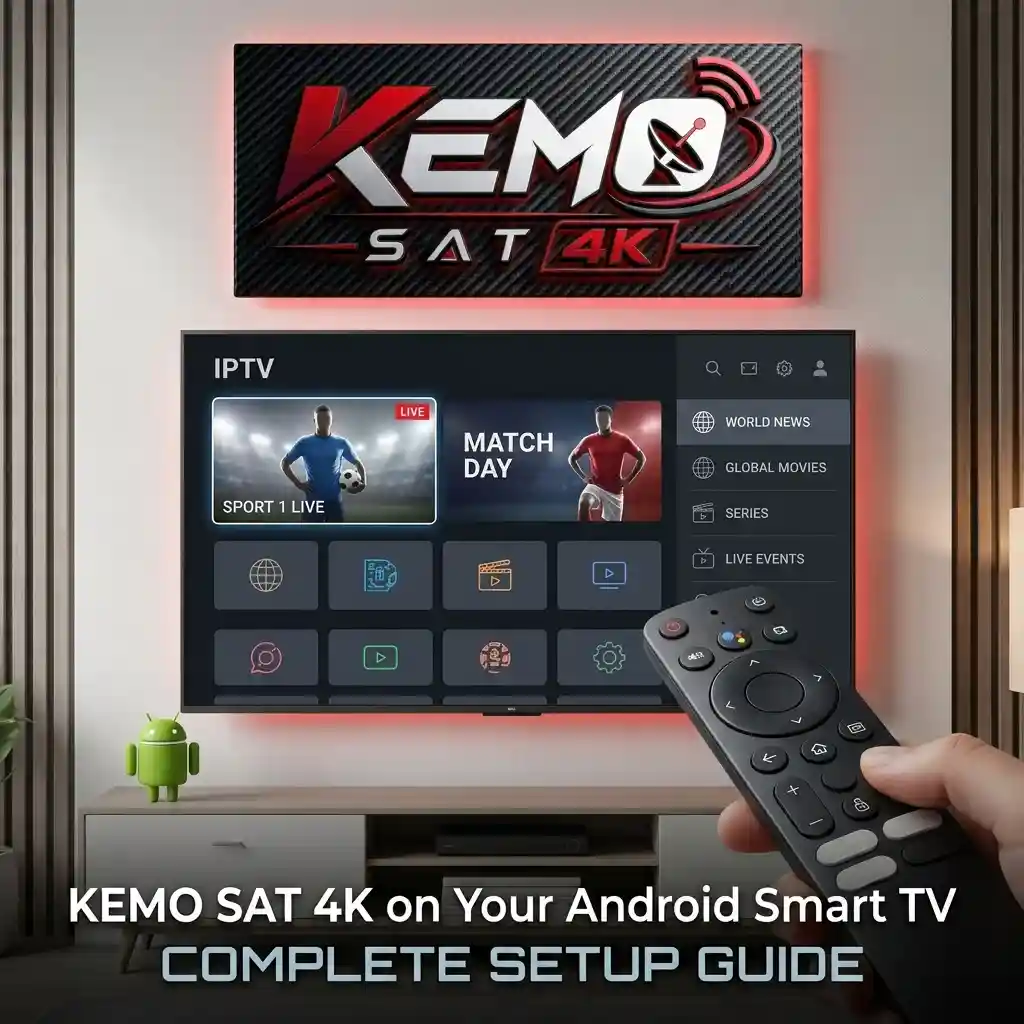
Welcome to the official KEMO SAT Android Smart TV Installation Guide. This step-by-step tutorial explains how to install and set up KEMO SAT 4K on Android Smart TV devices.
Whether you are using a Sony Android TV, TCL, Philips, Xiaomi TV, Hisense Android TV, or another compatible Android-based television, this guide will help you complete the setup quickly and easily.
Enjoy a smooth streaming experience directly on your Smart TV without the need for additional devices.
Table of Contents
Before Installing KEMO SAT on Your Smart TV
Before starting the installation, make sure you have:
- A compatible Android Smart TV
- A stable internet connection
- An active KEMO SAT 4K subscription
- Your login details
- Enough storage space for the required application
For the best experience, we recommend connecting your Smart TV to a reliable high-speed internet connection.
Step 1 – Open Google Play Store
Turn on your Android Smart TV and open the Google Play Store from your applications menu.
Use the search function to find a compatible IPTV player application supported by your subscription.
Install the application and wait until the installation process is completed.
Step 2 – Open Your IPTV Application
After installing the application:
- Open the IPTV player
- Accept any required permissions
- Choose the available login method
Most applications support options such as:
- Xtream Codes API
- M3U Playlist
- Portal login (depending on application support)
Step 3 – Enter Your KEMO SAT Account Details
Enter the information provided with your subscription:
- Username
- Password
- Server URL
Make sure all information is entered correctly to avoid login errors.
After entering your details, save the configuration.
Step 4 – Wait for Your Content to Load
The application will connect to the server and begin loading your available content.
Depending on your internet speed and device performance, this may take a few moments.
Once completed, your categories and available content will appear.
Step 5 – Start Watching on Your Smart TV
Your Android Smart TV setup is now complete.
You can browse your available categories and enjoy your streaming experience directly from your television.
Recommended Android TV Settings
For better performance, we recommend:
- Keeping your Android TV software updated
- Updating your IPTV application regularly
- Restarting your TV occasionally
- Closing unused applications running in the background
- Using Ethernet connection when possible
These steps can help improve stability and playback quality.
Common Android Smart TV Problems
Application Cannot Be Installed
If you cannot install the application:
- Check available storage space
- Make sure your TV is connected to the internet
- Restart your Smart TV
- Check that your Android version is supported
Login Information Not Working
If your account does not connect:
- Verify your username and password
- Check your server URL
- Make sure your subscription is active
Buffering or Freezing Issues
Streaming problems are usually related to internet connection quality.
Try:
- Restarting your router
- Using a wired Ethernet connection
- Closing other applications
- Restarting your IPTV application
Content Not Loading
If channels or categories are missing:
- Refresh your playlist
- Restart the application
- Check your internet connection
Supported Android Smart TV Devices
KEMO SAT 4K can be used on many Android-based Smart TV devices, including:
- Sony Android TV
- TCL Android TV
- Philips Android TV
- Xiaomi Android TV
- Hisense Android TV
- Google TV devices
- Other compatible Android Smart TVs
Frequently Asked Questions
Can I install KEMO SAT directly on my Smart TV?
Yes. Android Smart TVs allow you to install compatible applications directly through the Google Play Store.
Do I need a Firestick for Android TV?
No. Android Smart TVs can run compatible applications directly without additional hardware.
Is installation difficult?
No. The setup process is simple and usually takes only a few minutes.
Can I use the same account on another device?
Your subscription usage depends on your selected plan and device limit.
Where can I find other installation guides?
Visit our KEMO SAT 4K Guides page for tutorials covering Firestick, Android phones, Windows, macOS, iPhone, MAG Box, and other devices.
Need Help With Setup?
If you experience any issues while installing KEMO SAT on your Android Smart TV, visit our troubleshooting section or contact our support team.