
How to Install KEMO SAT on MAG Box | Complete IPTV Setup Guide
Introduction
Welcome to the ultimate, definitive guide on how to install KEMO SAT on MAG Box. While Android TV boxes and Fire Sticks are popular, the MAG Box remains a gold standard for true IPTV enthusiasts. Infomir’s MAG series (including models like MAG 250, 254, 322, 420, 524, and the new 555) are dedicated set-top boxes designed specifically to optimize the IPTV experience through their native Stalker Middleware platform.
This guide will focus on the most efficient, optimized, and recommended way to install KEMO SAT 4K on a MAG Box: the Stalker Portal Method. Setting up a portal provides an experience identical to traditional cable or satellite, complete with a fast Electronic Program Guide (EPG), instant channel zapping, and seamlessly integrated Video on Demand (VOD). Let’s transform your TV into an entertainment powerhouse.
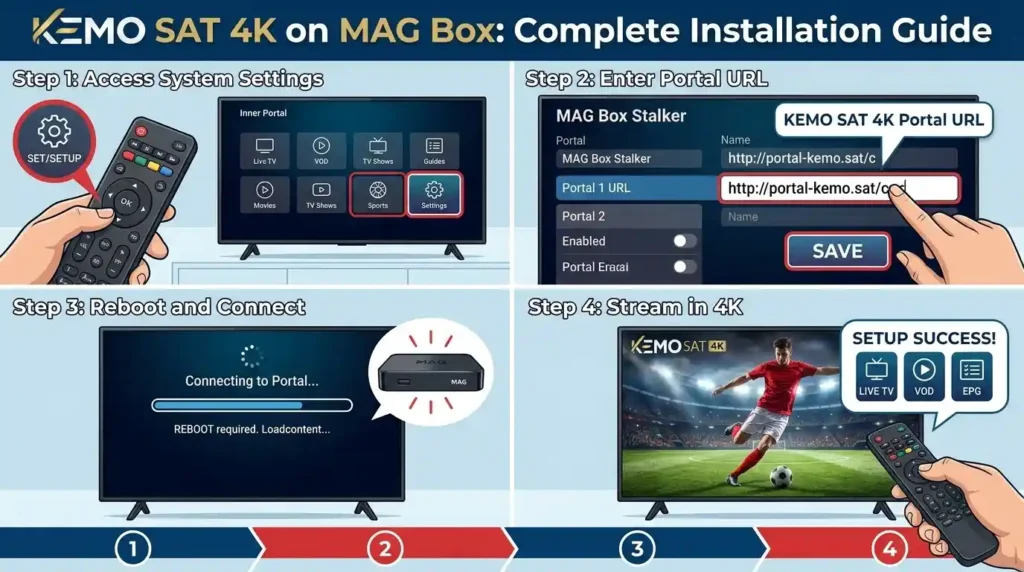
Table of Contents
Before You Begin: System Requirements
To ensure a flawless 4K streaming experience, your setup must meet these essential technical requirements:
- Operating System: Any compatible MAG Box (e.g., MAG 254, 322, 420, 524, 555).
- Internet Connection: A stable wired (Ethernet) connection is strongly recommended over Wi-Fi for IPTV. (Minimum 20 Mbps for HD, 50 Mbps or higher for stable 4K streaming).
- Subscription Details: Have your KEMO SAT welcome email ready. You will need your Portal URL provided in your subscription details.
- Active MAC Address: Your provider (KEMO SAT) needs your MAG Box’s unique MAC address to activate the Stalker portal. You can find this on the sticker on the bottom or back of your device (starts with
00:1A:79:xx:xx:xx).
Method 1: The Optimized Stalker Portal Installation (Recommended)
This is the standard and most powerful method, utilizing the device’s native Stalker Middleware to load the entire service, including the EPG and VOD.
Step-by-Step Instructions:
- Connect Your MAG Box: Connect the box to your TV via HDMI and to your router via an Ethernet cable. Power it on.
- Access the Main Menu: Wait for the loading screen. If you go directly to an old portal or see a “Loading error,” use your remote to access the Inner Portal or main settings.
- To access Inner Portal: While powering on the device, continuously press the Set/Setup button (gear icon) on your remote until you enter the “System Settings” or “Main Menu.” Alternatively, use the ‘Home’ or ‘Menu’ button if already on a ‘Portal Error’ screen.
- Navigate to Servers: From the main menu, use the arrow keys to select Settings (Gear icon) and press OK.
- Choose Servers: Scroll down and select Servers, then press OK.
- Open Portals: Select Portals and press OK.
- Enter Portal Details: You will see multiple portal fields. Fill in the first one:
- Portal 1 Name: Enter “KEMO SAT 4K” (or anything you prefer to label the server).
- Portal 1 URL: Carefully type the exact Portal URL provided in your KEMO SAT subscription email. Ensure every character is correct, including
http://, slashes, and periods. - Leave Portal 2 blank unless instructed otherwise.
- Save and Reboot: Press the OK or Save button (usually a confirmation prompt will appear). A prompt should say: “Changes saved. Please reboot your device.”
- Reboot the Device: Go back to the System Settings menu and choose Reboot device, then OK to confirm.
- Load KEMO SAT: The MAG Box will restart and automatically attempt to load the new Stalker Portal. A progress bar will show the content downloading. This can take several minutes. Once completed, your channel list and EPG will appear.
Method 2: The Alternative M3U USB Method (For Specific Models)
While Stalker is superior, some newer models like MAG 4XX and 5XX series (MAG410, MAG420, MAG425, MAG500, MAG520, MAG524, etc.) may struggle with the Portal system. In these cases, using an M3U playlist on a USB drive is a reliable alternative to bring live TV to your device.
Step-by-Step Instructions:
- Download M3U File: Use your computer to download the static M3U playlist file provided by KEMO SAT.
- Copy to USB: Save this
.m3ufile to a standard USB storage drive. Do not put it in a folder. - Insert USB: Plug the USB drive into your MAG box’s USB port.
- Access Embedded Portal: Once the box is on the main screen (Embedded Portal), a “Login” or main screen, click on Embedded Portal or Home Media.
- Locate USB: Scroll down and select your USB drive from the list of storage locations.
- Open M3U File: Find the
.m3ufile on your USB drive, select it, and click Open. - Add to Playlist: A window will appear saying “Open playlist.” Do not just open; use the F3 button (yellow button on most remote models) to add it to the device’s IPTV section.
- Enjoy Live TV: Return to the embedded portal main screen and look for the IPTV Channels section. Your loaded list will be there, ready to watch. Note: This method may not integrate the EPG as fully as the Stalker Portal method.
Troubleshooting Common MAG Box Issues
MAG Boxes are highly optimized but can sometimes be sensitive to configuration details.
- “Authorization Failed” or “Login Failed”: This means the MAG Box is connected, but the server rejected it. The issue is usually your MAC Address. Log in to your KEMO SAT client panel or contact support to verify that the MAC Address
00:1A:79:xx:xx:xxyou provided is active and paired correctly. Also, double-check your Portal URL for any typos. - “Loading Error” or “Server Down”: If you see this error continuously, ensure your Internet is working. Check the Portal URL again. Type it manually if you copied it. If the issue persists, the provider’s server may be temporarily down, or you are blocked.
- Constant Buffering or Freezing: This is almost always an internet stability issue. If you are using Wi-Fi, immediately switch to a wired Ethernet connection. Ensure no large background downloads are happening on your network. Check your speed: 4K needs a rock-solid 50 Mbps connection to your box.
- No EPG or EPG Not Updating: Go back into your System Settings > Servers > Portals and verify the URL is perfectly correct. Sometimes, the provider requires a specific “EPG URL,” but Stalker typically integrates it automatically with the standard portal. If it never loads, ask KEMO SAT if their MAG Box EPG is active.
Frequently Asked Questions (FAQ)
Can I watch KEMO SAT on multiple MAG Boxes with one subscription? A MAG Box connection is typically “connection-locked” to a single MAC Address. While KEMO SAT may allow multiple streams on other device types, they do not usually support using the same active MAG Box portal login on multiple MAG devices simultaneously without an extra connection plan. Contact support to clarify your plan.
Do I need a VPN for my MAG Box? It is not required for the setup. However, using a VPN can significantly improve stability, prevent Internet Service Provider (ISP) throttling of your streaming speeds, and bypass any regional blocks. A VPN that you can set up on your router is best for a MAG Box, as it does not have native VPN software.
What is the difference between Inner and Embedded Portal?Embedded Portal is Infomir’s basic middleware with internal apps (like YouTube, Web Browser). Inner Portal is often synonymous with the core configuration screen where you set network, system time, and Stalker portals. Sometimes, manufacturers label them differently, but the “Stalker Portal” configuration is always accessed from a core setting menu, not inside a provider’s app.
Need help setting up KEMO SAT on other devices? Check out our other installation guides for Firestick, Android TV, and Smartphone!