
How to Install KEMO SAT on Windows PC | Complete Setup Guide
Introduction
Welcome to the ultimate guide on how to install KEMO SAT on Windows PC. If you want to transform your laptop or desktop computer into a complete entertainment hub, setting up KEMO SAT 4K is incredibly straightforward.
Watching your favorite live channels, movies, and VODs on a PC offers great flexibility, whether you are using a dedicated media room computer or just streaming on your laptop while traveling. Because Windows offers wide compatibility, you have multiple highly reliable options for loading your KEMO SAT subscription.
In this guide, we will walk you through the three best methods for watching KEMO SAT on a Windows PC: using IPTV Smarters Pro, VLC Media Player, and the Web Player.
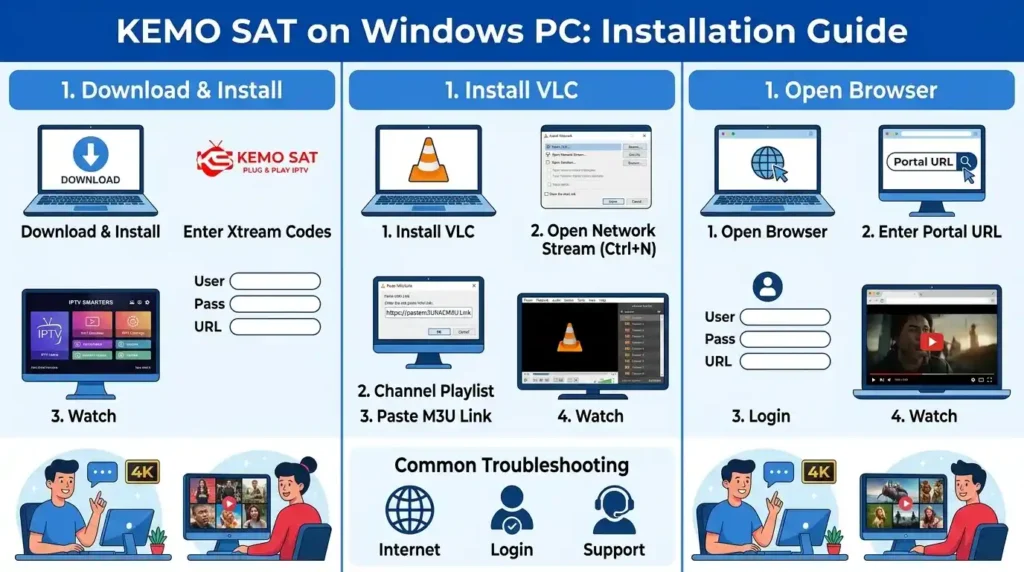
Table of Contents
Before You Begin: System Requirements
To ensure a smooth, buffer-free 4K streaming experience on your computer, ensure your setup meets these basic requirements:
- Operating System: Windows 10 or Windows 11.
- Internet Connection: A stable wired (Ethernet) connection or 5GHz Wi-Fi is highly recommended. (Minimum 30 Mbps for 4K streaming).
- Subscription Details: Have your KEMO SAT welcome email ready. You will need your M3U Link or your Xtream Codes API details (Username, Password, and Portal URL).
Method 1: Setting up KEMO SAT via IPTV Smarters Pro (Recommended)
IPTV Smarters Pro is the most popular dedicated application for Windows because it offers a beautifully organized interface that looks just like a standard Smart TV app. It supports EPG (Electronic Program Guide), catch-up, and organized VOD categories.
Step-by-Step Instructions:
- Download the App: Visit the official IPTV Smarters website and download the
.exefile for Windows. - Install the Software: Open the downloaded file and follow the on-screen prompts to install the application on your PC.
- Launch the App: Open IPTV Smarters Pro.
- Choose Login Method: Click on “Login with Xtream Codes API”.
- Enter Your Details: Fill in the fields using the credentials provided in your KEMO SAT subscription email:
- Any Name: Enter “KEMO SAT” (or anything you prefer).
- Username: Type your unique KEMO SAT username.
- Password: Type your unique password.
- URL: Paste the Portal URL provided by KEMO SAT.
- Add User: Click “Add User” and wait a few moments. The app will download the channel list, VODs, and TV Guide. You are ready to stream!
Method 2: Setting up KEMO SAT via VLC Media Player (Best for M3U)
If you prefer lightweight, open-source software and don’t care about a fancy user interface, VLC Media Player is a fantastic and reliable alternative.
Step-by-Step Instructions:
- Download VLC: If you don’t already have it, download and install VLC Media Player from the official VideoLAN website (videolan.org).
- Open VLC: Launch the media player on your PC.
- Open Network Stream: Click on Media in the top left corner of the menu bar, then select Open Network Stream (or press
Ctrl + Non your keyboard). - Enter M3U Link: Under the “Network” tab, paste your complete KEMO SAT M3U URL into the empty field.
- Play: Click the Play button.
- Access Channels: To view the channel list, click on View in the top menu and select Playlist (or press
Ctrl + L). Double-click any channel to start watching.
Method 3: Using the Web Player
If you are using a work computer or a device where you cannot install third-party software, many IPTV services offer a Web Player option.
Step-by-Step Instructions:
- Open your Browser: Launch Google Chrome, Microsoft Edge, or Mozilla Firefox.
- Navigate to the Web Player: Go to the official Web Player URL provided in your KEMO SAT welcome email.
- Login: Enter your Xtream Codes API details (Username, Password, and Portal URL).
- Stream: Your playlist will load directly in your browser. (For the best performance, make sure your browser is updated to the latest version).
Troubleshooting Common Windows Streaming Issues
Even with a premium service, you might run into occasional hiccups. Here is how to fix the most common PC streaming issues:
- Buffering or Freezing: This is almost always an internet issue. Connect your PC directly to your router using an Ethernet cable rather than relying on Wi-Fi. Ensure no heavy downloads are running in the background.
- VLC Player Keeps Skipping Channels: VLC sometimes loops through the M3U list automatically. To fix this, click the “Loop” icon at the bottom of the VLC player until it shows a small “1” (Loop One), which stops it from jumping to the next channel.
- “Authorization Failed” Error: Double-check your username and password. Remember that login credentials are case-sensitive. Ensure there are no accidental blank spaces at the beginning or end of your typed details.
Frequently Asked Questions (FAQ)
Can I watch KEMO SAT on my Mac instead of Windows?
Yes! Both IPTV Smarters Pro and VLC Media Player have dedicated, free applications for macOS. The setup process is nearly identical to the Windows instructions above.
Do I need a VPN to watch KEMO SAT on my PC?
While KEMO SAT provides a highly secure connection, using a reputable VPN is always recommended when streaming IPTV. A VPN prevents your Internet Service Provider (ISP) from throttling your connection speeds, ensuring buffer-free 4K streaming.
Can I record live TV on my PC?
Yes. If you are using VLC Media Player, you can use the built-in “Record” button (found under View > Advanced Controls) to save live TV directly to your hard drive.
Need help setting up KEMO SAT on another device? Check out our other installation guides for Android Smart TV, Firestick, and Smartphones!